---
title: Working with Unity Integration
description: Learn how Needle Engine integrates with Unity - visual features, scene structure, and the export workflow
---
# Working with Unity Integration
Learn how Needle Engine brings Unity's powerful visual tools to the web—no code required for many features!
:::tip Before You Start
Make sure you have Needle Engine installed in Unity. See [Unity Installation](/docs/unity/) for setup instructions.
:::
---
## How Needle Engine Works with Unity
Needle Engine provides tight integration with the Unity Editor, allowing you to:
- **Design visually** in Unity's familiar interface
- **Use built-in Unity features** (shaders, lightmaps, animation, physics)
- **Export to optimized web formats** automatically
- **See changes instantly** with hot reload
:::important Key Concept: Unity + glTF + Web
Needle Engine does **NOT** compile C# code to WebAssembly.
**The workflow:**
1. **Unity Editor** - Design scenes, set up components, configure visual features
2. **glTF Export** - Scene converts to glTF format automatically
3. **Web Runtime** - Browser loads and displays your scene
**Why?** Small file sizes, fast loading, and works on any device with a browser.
Read more: [Vision](../../explanation/core-concepts/vision) • [Technical Overview](../../explanation/architecture/technical-overview)
:::
:::details Video: Getting Started with Unity (16 minutes)
:::
---
## What Works Out of the Box
Many powerful features work without writing code!
### 🎬 Animation
**Animate visually** with Unity's powerful animation tools:
 #### Animator State Machines
Create complex animation behaviors without code:
- Set up **Animation Controllers** in Unity
- Define **states** and **transitions**
- Use **parameters** to control animations
- Add **layers** for animation blending
All exported and working on the web automatically!
#### Timeline Sequencing
Create cinematic sequences and cutscenes:
- **Timeline** - Sequence animations, audio, and events
- **Playable Director** - Control playback
Perfect for product showcases, architectural walkthroughs, and interactive stories.
[Read more: Animation Components](/docs/reference/components#animation)
---
### ⚙️ Physics
**Visual physics setup** - no coding required for basic interactions:
**Add physics components in Unity:**
- **Rigidbody** - Objects respond to gravity and forces
- **Colliders** - Define collision shapes (Box, Sphere, Mesh)
- **Physics Materials** - Bounce, friction properties
- **Joints** - Connect rigidbodies with constraints
**Configure visually:**
- Mass, drag, and gravity settings
- Collision layers and masks
- Trigger zones (Is Trigger checkbox)
- Constraints (freeze position/rotation)
Everything exports and works on the web with the Rapier physics engine!
[Read more: Physics Setup](/docs/how-to-guides/scripting/use-physics)
---
### Shaders & Materials
**Create beautiful materials visually** with Unity's tools:
#### Animator State Machines
Create complex animation behaviors without code:
- Set up **Animation Controllers** in Unity
- Define **states** and **transitions**
- Use **parameters** to control animations
- Add **layers** for animation blending
All exported and working on the web automatically!
#### Timeline Sequencing
Create cinematic sequences and cutscenes:
- **Timeline** - Sequence animations, audio, and events
- **Playable Director** - Control playback
Perfect for product showcases, architectural walkthroughs, and interactive stories.
[Read more: Animation Components](/docs/reference/components#animation)
---
### ⚙️ Physics
**Visual physics setup** - no coding required for basic interactions:
**Add physics components in Unity:**
- **Rigidbody** - Objects respond to gravity and forces
- **Colliders** - Define collision shapes (Box, Sphere, Mesh)
- **Physics Materials** - Bounce, friction properties
- **Joints** - Connect rigidbodies with constraints
**Configure visually:**
- Mass, drag, and gravity settings
- Collision layers and masks
- Trigger zones (Is Trigger checkbox)
- Constraints (freeze position/rotation)
Everything exports and works on the web with the Rapier physics engine!
[Read more: Physics Setup](/docs/how-to-guides/scripting/use-physics)
---
### Shaders & Materials
**Create beautiful materials visually** with Unity's tools:
 - **PBR Materials** - Standard/URP materials export automatically
- **Shader Graph** - Node-based shader creation without code
- **Custom Shaders** - Export shader variants and properties
**What you can adjust:**
- Colors, textures, and material properties
- Metallic, roughness, emission
- Transparency and rendering modes
- Shader properties (exposed as material properties)
Artists can create shaders in Unity and Needle Engine handles the conversion to web-compatible shaders automatically.
[Read more: Materials & Shaders](/docs/how-to-guides/export/#physically-based-materials-pbr)
---
### 💡 Lightmaps
**Bake beautiful lighting** in Unity and it appears on the web automatically:
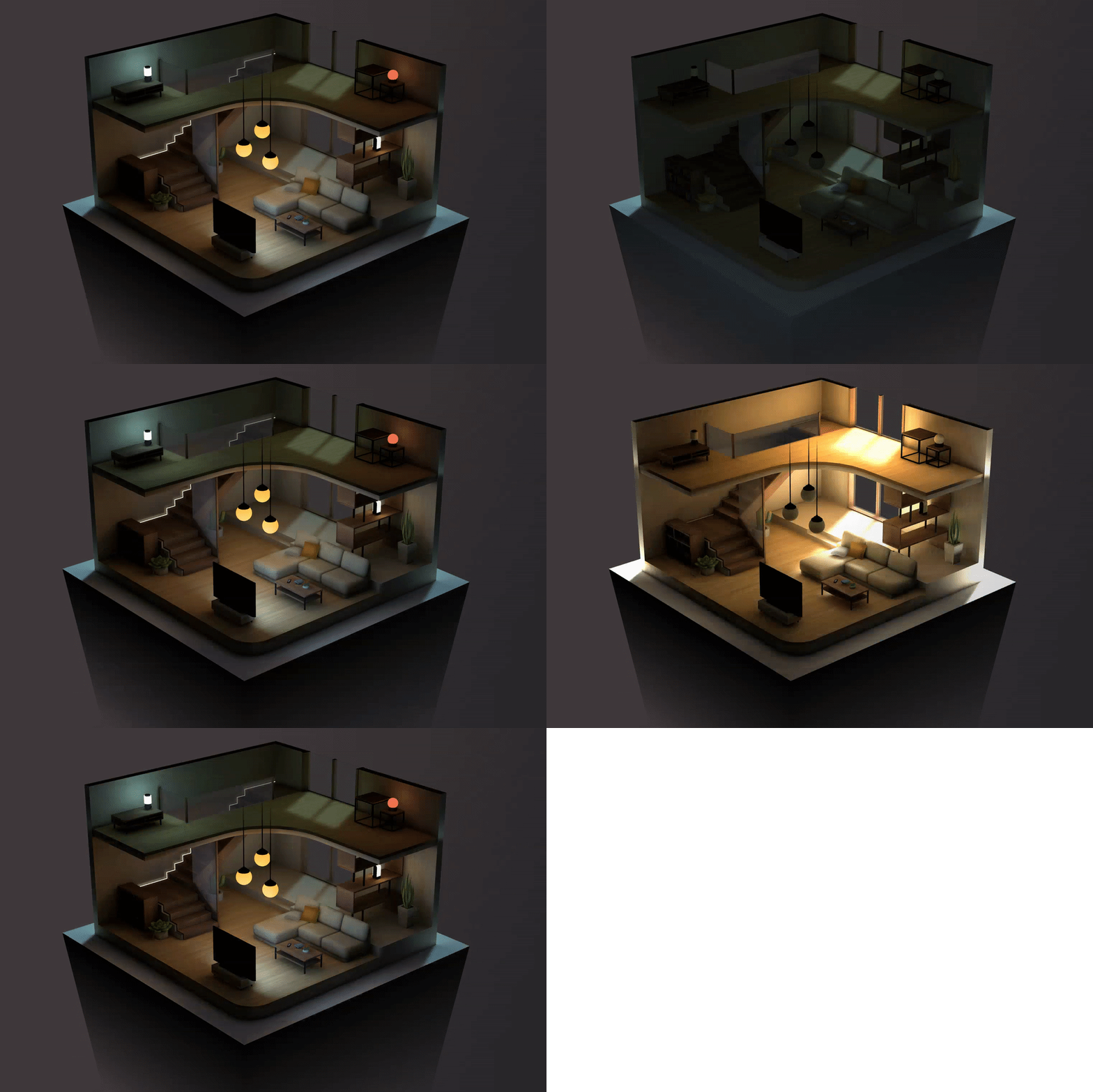
**Setup (no code required):**
1. Mark objects as **Static** in Unity
2. Add lights or use emissive materials
3. Click **Generate Lighting**
4. Needle Engine exports lightmaps automatically
**Works with:**
- Unity's built-in lightmapper
- Third-party solutions like [Bakery](https://assetstore.unity.com/packages/tools/level-design/bakery-gpu-lightmapper-122218)
- Multiple scenes with independent lightmaps
#### Recommended Unity Lightmap Settings
For best performance and quality on the web:
- **Lightmap Encoding:** Normal Quality (adjust in Project Settings > Player)
- **Progressive GPU** (faster and usually accurate enough for small scenes)
- **Non-Directional Lightmaps**
- **Max Lightmap Size:** 2k (you can go higher, but expect large files)
- **Max 4× 2k lightmaps per scene** (you can go higher, but expect large files)
- **Compress Lightmaps:** OFF (increases quality; otherwise compressed again at export)

**Working with multiple scenes:** Disable "Auto Generate" and bake lightmaps explicitly. Otherwise, Unity will discard temporary lightmaps on scene change.
#### Mixing Baked and Non-Baked Objects
For best results when mixing baked and non-baked objects, use these Unity lighting settings:
```
Environment Lighting: Skybox
Ambient Intensity: 1
Ambient Color: black
```
**Unity 2021.3+:**

**Unity 2020.3+:**

If you have no baked objects in your scene, these settings also work:
```
Environment Lighting: Color
Ambient Color: any
```
What you see in Unity is what you get on the web!
[Read more: Lightmaps](/docs/how-to-guides/export/#exporting-lightmaps)
---
### 🎨 Post-Processing
**Add professional visual effects** with post-processing:
- **Bloom** - Glowing highlights
- **SSAO** - Ambient occlusion for depth
- **Depth of Field** - Focus effects
- **Color Correction** - Adjust tone and mood
- **Tonemapping** - Control exposure and contrast
Add a **Volume** component to your camera and configure effects visually in Unity. Effects work on all devices!
[See all post-processing components](/docs/reference/components#postprocessing)
---
### 🎨 Particle Systems
**Create stunning visual effects:**
Unity's Particle System works on the web! Configure particles visually:
- Emission rates and bursts
- Particle lifetime and size
- Colors and gradients
- Forces and velocity
- Collision and sub-emitters
Great for fire, smoke, sparkles, rain, and magical effects.
---
### 🖼️ UI Canvas
**Build interactive UI** without code:
Unity's **Canvas** system works on the web:
- Buttons, text, images, and input fields
- Layout groups for responsive design
- Screen space and world space UI
- Event triggers for interactions
Perfect for HUDs, menus, and interactive elements.
[Read more: UI Components](/docs/reference/components#ui)
---
### 👥 Multiplayer (No Code)
**Add multiplayer** with built-in components:
- **SyncedRoom** - Automatic room creation and joining
- **SyncedTransform** - Sync object positions automatically
- **SyncedCamera** - See other users' viewpoints
- **Voip** - Voice chat with spatial audio
Just add components in Unity - no networking code needed!
[Read more: Networking Setup](/docs/how-to-guides/networking/setup)
---
### 🥽 XR/AR Support
**VR and AR** with visual setup:
- **WebXR** component - Enable VR/AR mode
- **XR Rig** - Configure VR camera and controllers
- **AR Session Root** - AR placement and scale
- **XR Flag** - Show/hide objects in VR/AR
Works on Meta Quest, Apple Vision Pro, and AR on mobile devices!
[Read more: XR Setup](/docs/how-to-guides/xr/)
---
## Scene Structure & GameObjects
### GameObject Hierarchy
Your Unity hierarchy exports directly to the web:
- Parent-child relationships maintained
- Transform data (position, rotation, scale)
- Object names preserved
- Active state and visibility
**Key concept:** In three.js/Needle Engine, `GameObject` and `Transform` are the same object (`Object3D`).
### Components
**Built-in Unity components** that work on the web:
- Camera
- Light (Directional, Point, Spot)
- MeshRenderer / SkinnedMeshRenderer
- MeshFilter
- AudioSource
- And many more!
[See all built-in components](/docs/reference/components)
---
## Quick Reference: Unity → Needle Engine
| Unity Concept | Needle Engine | Notes |
| --- | --- | --- |
| GameObject | Object3D | Same object in three.js |
| Transform | Object3D | No separate Transform component |
| MonoBehaviour | Behaviour | Base class for components |
| C# Scripts | TypeScript/JavaScript | Runtime behavior |
| Static (Lightmap) | Automatic export | Just mark as Static |
| Animator Controller | Animator component | State machines work! |
| Physics Material | PhysicsMaterial | Friction/bounce settings |
| Canvas UI | Canvas component | World and screen space |
| UnityEvent | EventList | Use @serializable(EventList) |
| `position` | **Local space** | Use `worldPosition` for world |
---
## glTF Export
When you save your Unity scene, Needle Engine automatically exports to **glTF format** (`.glb` or `.gltf`).
### What Gets Exported
**Visual Assets:**
- Meshes and geometry
- Materials and textures
- Lightmaps and skyboxes
- Animations and blend shapes
- Particle systems
- Audio files
**Scene Data:**
- GameObject hierarchy
- Transform data
- Component configurations
- References between objects
**Optimization:**
- Automatic texture compression (KTX2)
- Mesh compression (Draco)
- Progressive loading for large scenes
- LOD (Level of Detail) support
[Read more: Export & Optimization](/docs/how-to-guides/export/)
---
## Web Project Structure
When Needle Engine creates a web project, you get:
```
YourUnityProject/
└── Assets/
YourWebProject/ ← Generated web project
├── assets/
│ └── scene.glb ← Exported glTF scene
├── src/
│ ├── main.ts ← Entry point
│ └── scripts/ ← Custom components (optional)
├── package.json
└── vite.config.js
```
**Project location:** By default, created next to your Unity project. Configure in the Needle Engine component.
---
## Editor Sync & Hot Reload
**See changes instantly** without rebuilding:
Add the **EditorSync** component to enable live sync:
1. Make changes in Unity (move objects, adjust materials, change properties)
2. Save the scene (Ctrl+S / Cmd+S)
3. Browser updates automatically!
**What syncs:**
- Transform changes
- Material properties
- Component field values
- Hierarchy changes
**Code hot-reload:** TypeScript changes also reload automatically when you save.
:::details Video: From Unity Project to Live Sync with three.js (4 minutes)
:::
[Read more: Editor Sync](/docs/unity/editor-sync)
---
## Adding Custom Behavior (Optional)
While many features work without code, you can add custom interactivity with TypeScript:
**TypeScript workflow:**
1. Write TypeScript components in `src/scripts/`
2. C# stubs generate automatically in Unity
3. Add components to GameObjects visually
4. Configure properties in the Inspector
**Common use cases:**
- Custom interactions (click, hover)
- Game logic and rules
- Data loading and APIs
- Complex animations
- Custom UI behavior
**Learn scripting:**
- [Create Components](/docs/how-to-guides/scripting/create-components) - Write custom components
- [C# to TypeScript Translation](/docs/tutorials/fundamentals/c-sharp-to-typescript) - For Unity developers
- [TypeScript Essentials](/docs/tutorials/fundamentals/typescript-essentials) - Language basics
---
## Framework Integration
Needle Engine works with any web framework:
- **Vue.js** - Reactive UI framework
- **React** - Component-based UI
- **Svelte** - Lightweight and fast
- **Next.js** - React with server rendering
- **And more!**
The default template uses **Vite** for fast development.
[See framework samples](https://engine.needle.tools/samples/?tag=framework)
---
## What's Next?
### Continue Learning
**For Unity Users:**
- [Unity Getting Started](/docs/unity/getting-started) - Step-by-step setup tutorial
- [For Unity Developers](/docs/tutorials/fundamentals/for-unity-developers) - Complete learning path
**Add Custom Behavior:**
- [Create Components](/docs/how-to-guides/scripting/create-components) - Write interactive code
- [C# to TypeScript](/docs/tutorials/fundamentals/c-sharp-to-typescript) - Translate your C# knowledge
**Explore Features:**
- [Component Reference](/docs/reference/components) - All built-in components
- [Samples & Showcase](https://engine.needle.tools/samples/) - See what's possible
### Get Help
- [FAQ](/docs/reference/faq) - Common questions
- [Discord Community](https://discord.needle.tools) - Live support
- [Forum](https://forum.needle.tools) - In-depth discussions
- **PBR Materials** - Standard/URP materials export automatically
- **Shader Graph** - Node-based shader creation without code
- **Custom Shaders** - Export shader variants and properties
**What you can adjust:**
- Colors, textures, and material properties
- Metallic, roughness, emission
- Transparency and rendering modes
- Shader properties (exposed as material properties)
Artists can create shaders in Unity and Needle Engine handles the conversion to web-compatible shaders automatically.
[Read more: Materials & Shaders](/docs/how-to-guides/export/#physically-based-materials-pbr)
---
### 💡 Lightmaps
**Bake beautiful lighting** in Unity and it appears on the web automatically:

**Setup (no code required):**
1. Mark objects as **Static** in Unity
2. Add lights or use emissive materials
3. Click **Generate Lighting**
4. Needle Engine exports lightmaps automatically
**Works with:**
- Unity's built-in lightmapper
- Third-party solutions like [Bakery](https://assetstore.unity.com/packages/tools/level-design/bakery-gpu-lightmapper-122218)
- Multiple scenes with independent lightmaps
#### Recommended Unity Lightmap Settings
For best performance and quality on the web:
- **Lightmap Encoding:** Normal Quality (adjust in Project Settings > Player)
- **Progressive GPU** (faster and usually accurate enough for small scenes)
- **Non-Directional Lightmaps**
- **Max Lightmap Size:** 2k (you can go higher, but expect large files)
- **Max 4× 2k lightmaps per scene** (you can go higher, but expect large files)
- **Compress Lightmaps:** OFF (increases quality; otherwise compressed again at export)

**Working with multiple scenes:** Disable "Auto Generate" and bake lightmaps explicitly. Otherwise, Unity will discard temporary lightmaps on scene change.
#### Mixing Baked and Non-Baked Objects
For best results when mixing baked and non-baked objects, use these Unity lighting settings:
```
Environment Lighting: Skybox
Ambient Intensity: 1
Ambient Color: black
```
**Unity 2021.3+:**

**Unity 2020.3+:**

If you have no baked objects in your scene, these settings also work:
```
Environment Lighting: Color
Ambient Color: any
```
What you see in Unity is what you get on the web!
[Read more: Lightmaps](/docs/how-to-guides/export/#exporting-lightmaps)
---
### 🎨 Post-Processing
**Add professional visual effects** with post-processing:
- **Bloom** - Glowing highlights
- **SSAO** - Ambient occlusion for depth
- **Depth of Field** - Focus effects
- **Color Correction** - Adjust tone and mood
- **Tonemapping** - Control exposure and contrast
Add a **Volume** component to your camera and configure effects visually in Unity. Effects work on all devices!
[See all post-processing components](/docs/reference/components#postprocessing)
---
### 🎨 Particle Systems
**Create stunning visual effects:**
Unity's Particle System works on the web! Configure particles visually:
- Emission rates and bursts
- Particle lifetime and size
- Colors and gradients
- Forces and velocity
- Collision and sub-emitters
Great for fire, smoke, sparkles, rain, and magical effects.
---
### 🖼️ UI Canvas
**Build interactive UI** without code:
Unity's **Canvas** system works on the web:
- Buttons, text, images, and input fields
- Layout groups for responsive design
- Screen space and world space UI
- Event triggers for interactions
Perfect for HUDs, menus, and interactive elements.
[Read more: UI Components](/docs/reference/components#ui)
---
### 👥 Multiplayer (No Code)
**Add multiplayer** with built-in components:
- **SyncedRoom** - Automatic room creation and joining
- **SyncedTransform** - Sync object positions automatically
- **SyncedCamera** - See other users' viewpoints
- **Voip** - Voice chat with spatial audio
Just add components in Unity - no networking code needed!
[Read more: Networking Setup](/docs/how-to-guides/networking/setup)
---
### 🥽 XR/AR Support
**VR and AR** with visual setup:
- **WebXR** component - Enable VR/AR mode
- **XR Rig** - Configure VR camera and controllers
- **AR Session Root** - AR placement and scale
- **XR Flag** - Show/hide objects in VR/AR
Works on Meta Quest, Apple Vision Pro, and AR on mobile devices!
[Read more: XR Setup](/docs/how-to-guides/xr/)
---
## Scene Structure & GameObjects
### GameObject Hierarchy
Your Unity hierarchy exports directly to the web:
- Parent-child relationships maintained
- Transform data (position, rotation, scale)
- Object names preserved
- Active state and visibility
**Key concept:** In three.js/Needle Engine, `GameObject` and `Transform` are the same object (`Object3D`).
### Components
**Built-in Unity components** that work on the web:
- Camera
- Light (Directional, Point, Spot)
- MeshRenderer / SkinnedMeshRenderer
- MeshFilter
- AudioSource
- And many more!
[See all built-in components](/docs/reference/components)
---
## Quick Reference: Unity → Needle Engine
| Unity Concept | Needle Engine | Notes |
| --- | --- | --- |
| GameObject | Object3D | Same object in three.js |
| Transform | Object3D | No separate Transform component |
| MonoBehaviour | Behaviour | Base class for components |
| C# Scripts | TypeScript/JavaScript | Runtime behavior |
| Static (Lightmap) | Automatic export | Just mark as Static |
| Animator Controller | Animator component | State machines work! |
| Physics Material | PhysicsMaterial | Friction/bounce settings |
| Canvas UI | Canvas component | World and screen space |
| UnityEvent | EventList | Use @serializable(EventList) |
| `position` | **Local space** | Use `worldPosition` for world |
---
## glTF Export
When you save your Unity scene, Needle Engine automatically exports to **glTF format** (`.glb` or `.gltf`).
### What Gets Exported
**Visual Assets:**
- Meshes and geometry
- Materials and textures
- Lightmaps and skyboxes
- Animations and blend shapes
- Particle systems
- Audio files
**Scene Data:**
- GameObject hierarchy
- Transform data
- Component configurations
- References between objects
**Optimization:**
- Automatic texture compression (KTX2)
- Mesh compression (Draco)
- Progressive loading for large scenes
- LOD (Level of Detail) support
[Read more: Export & Optimization](/docs/how-to-guides/export/)
---
## Web Project Structure
When Needle Engine creates a web project, you get:
```
YourUnityProject/
└── Assets/
YourWebProject/ ← Generated web project
├── assets/
│ └── scene.glb ← Exported glTF scene
├── src/
│ ├── main.ts ← Entry point
│ └── scripts/ ← Custom components (optional)
├── package.json
└── vite.config.js
```
**Project location:** By default, created next to your Unity project. Configure in the Needle Engine component.
---
## Editor Sync & Hot Reload
**See changes instantly** without rebuilding:
Add the **EditorSync** component to enable live sync:
1. Make changes in Unity (move objects, adjust materials, change properties)
2. Save the scene (Ctrl+S / Cmd+S)
3. Browser updates automatically!
**What syncs:**
- Transform changes
- Material properties
- Component field values
- Hierarchy changes
**Code hot-reload:** TypeScript changes also reload automatically when you save.
:::details Video: From Unity Project to Live Sync with three.js (4 minutes)
:::
[Read more: Editor Sync](/docs/unity/editor-sync)
---
## Adding Custom Behavior (Optional)
While many features work without code, you can add custom interactivity with TypeScript:
**TypeScript workflow:**
1. Write TypeScript components in `src/scripts/`
2. C# stubs generate automatically in Unity
3. Add components to GameObjects visually
4. Configure properties in the Inspector
**Common use cases:**
- Custom interactions (click, hover)
- Game logic and rules
- Data loading and APIs
- Complex animations
- Custom UI behavior
**Learn scripting:**
- [Create Components](/docs/how-to-guides/scripting/create-components) - Write custom components
- [C# to TypeScript Translation](/docs/tutorials/fundamentals/c-sharp-to-typescript) - For Unity developers
- [TypeScript Essentials](/docs/tutorials/fundamentals/typescript-essentials) - Language basics
---
## Framework Integration
Needle Engine works with any web framework:
- **Vue.js** - Reactive UI framework
- **React** - Component-based UI
- **Svelte** - Lightweight and fast
- **Next.js** - React with server rendering
- **And more!**
The default template uses **Vite** for fast development.
[See framework samples](https://engine.needle.tools/samples/?tag=framework)
---
## What's Next?
### Continue Learning
**For Unity Users:**
- [Unity Getting Started](/docs/unity/getting-started) - Step-by-step setup tutorial
- [For Unity Developers](/docs/tutorials/fundamentals/for-unity-developers) - Complete learning path
**Add Custom Behavior:**
- [Create Components](/docs/how-to-guides/scripting/create-components) - Write interactive code
- [C# to TypeScript](/docs/tutorials/fundamentals/c-sharp-to-typescript) - Translate your C# knowledge
**Explore Features:**
- [Component Reference](/docs/reference/components) - All built-in components
- [Samples & Showcase](https://engine.needle.tools/samples/) - See what's possible
### Get Help
- [FAQ](/docs/reference/faq) - Common questions
- [Discord Community](https://discord.needle.tools) - Live support
- [Forum](https://forum.needle.tools) - In-depth discussions